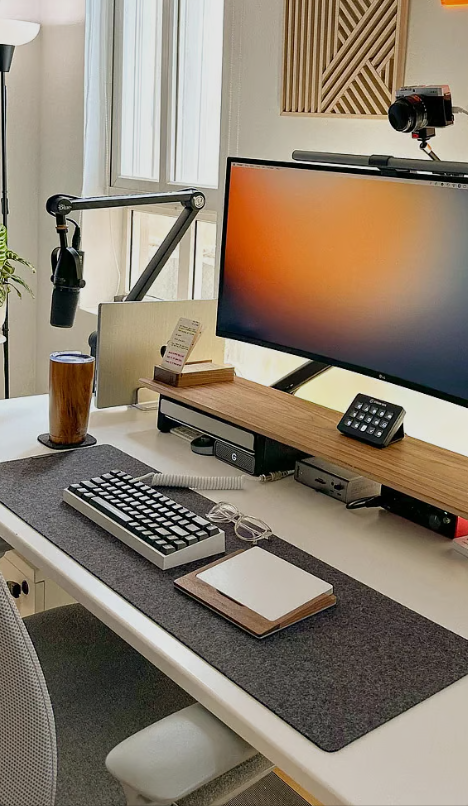
Best Laptop Stand for Home Office in 2025 – Ergonomic Picks Reviewed
Best laptop stand home office 2025 isn’t just about convenience—it’s about protecting your spine, neck, and wrists from the slow damage of poor posture. Most remote workers spend 8+ hours daily hunched over laptop screens, creating chronic pain that could take years to recover from. The right laptop stand costs $50-$200 but prevents thousands in medical bills and lost productivity.
This comprehensive guide reviews the best laptop stands available in 2025, from budget minimalist options to premium ergonomic systems. We’ll explain what makes a laptop stand actually work, which features matter versus marketing hype, and exactly how to choose the right one for your specific workspace and budget.
Whether you’re working at a standing desk, sitting desk, or traveling constantly, we’ve tested and ranked the options that deliver real ergonomic benefit without sacrificing aesthetics.
The Ergonomic Crisis: Why Laptop Stands Matter
Your laptop screen is at the wrong height. This is almost universally true. Most people work with their screens 2-4 inches below eye level, forcing them to tilt their heads downward constantly. Over months and years, this creates cervical spine strain, shoulder tension, and eventually chronic neck pain.
The Ergonomic Standard:
Your monitor (or laptop screen) should be positioned so that when sitting upright with shoulders relaxed, your eyes naturally look at the upper third of the screen. This typically requires the screen to be 15-20 degrees above horizontal eye line, positioned 20-28 inches from your face.
A laptop alone can never achieve this. Its screen is too low. A keyboard attached to the laptop keyboard is too flat. To get proper ergonomics, you need three things: a laptop stand raising the screen to proper height, an external keyboard and mouse at table height (or slightly below), and ideally, arm support.
The best laptop stand achieves all three while maintaining portability and aesthetics.
What Makes a Great Laptop Stand?
Height Adjustability (Critical):
A fixed-height stand only works for one person. Height needs to adjust based on your chair height and seated posture. Look for stands with multiple adjustment points (20-30 degree range minimum). Infinite adjustability is ideal; discrete levels are acceptable.
Stability Under Load (Critical):
Your laptop is heavy. Most stands need to support 4-7 lbs continuously. Poor stability creates micro-movements that distract you and strain your wrists. The base should be wide relative to height (wide base prevents tipping). Material matters: aluminum and steel provide stability; plastic often flexes.
Thermal Performance (Important):
Raised, open-design stands allow airflow underneath your laptop. This reduces thermal throttling and extends battery life. Closed designs trap heat, accelerating component degradation.
Compatibility (Important):
The stand should securely grip your laptop without moving. Rubber pads prevent sliding. Width should accommodate 11-17 inch laptops without excessive clamping (which damages the shell).
Cable Management (Nice to Have):
A good stand includes cable routing channels or clips. This prevents cable spaghetti and creates cleaner desk aesthetics.
Category 1: Minimalist Fixed-Height Stands (Budget-Friendly)
Best For: Stationary home offices, limited budgets, aesthetic-first priorities
Fixed-height stands typically cost $30-$80 and work beautifully if your desk and chair height are optimal. However, they only work for one person at one height. If multiple people use your desk or you adjust chair height frequently, this becomes a limitation.
Key Feature: Simple, elegant design that looks like furniture, not equipment. No moving parts means no maintenance and maximum stability.
Ideal Pairing: These work best alongside a 👉 Logitech MX Keys S Wireless Keyboard and 👉 Logitech MX Master 3S Mouse. This trio creates a professional, ergonomic setup that looks intentional and refined.
Category 2: Adjustable Aluminum Stands (Best Value)
Best For: Most home office workers, height-variable needs, longevity
Adjustable aluminum stands ($60-$150) balance cost, durability, and functionality. They accommodate multiple users and chair height variations through multiple adjustment notches or smooth-sliding mechanisms. Aluminum provides premium feel without premium price.
Why Aluminum Wins:
- Lightweight (easy to reposition)
- Strong (supports 4-7 lbs without flex)
- Thermally conductive (helps laptop cooling)
- Aesthetic (looks professional)
- Durable (lasts 5+ years easily)
This is the category where most users should focus their search. The jump from fixed to adjustable is transformative for ergonomics; the jump from aluminum to premium materials is marginal in real-world benefit. For a comprehensive home office setup, explore our guide to the best home office desks in 2025 which pairs perfectly with optimal monitor stand height.
Ideal Setup: Combine with a 👉 BenQ ScreenBar Monitor Light for screen-mounted lighting, plus the Logitech keyboard and mouse mentioned above, plus a quality chair like the 👉 Herman Miller Aeron Chair. This creates a comprehensive ergonomic system.
Category 3: Premium Integrated Systems (Maximum Flexibility)
Best For: Hot-desking setups, shared workspaces, maximum adjustability
Premium systems ($150-$400+) integrate laptop stand, keyboard tray, monitor arm, and dock connectivity. They offer 360-degree rotation, infinite height adjustment, and sophisticated ergonomics. However, they’re overkill for most home offices unless you’re extremely height-variable or hosting multiple users.
When Premium Makes Sense:
- You share your desk with others of different heights
- You sit/stand alternate throughout the day
- You run a multi-screen trading operation
- You need professional appearance for client video calls
For 85% of home office workers, adjustable aluminum offers 95% of the benefit at 50% of the cost.
Monitor Integration: Laptop Stands + External Displays
Most remote workers benefit from an external monitor alongside their raised laptop. This creates three display options:
Option A: Laptop Raised, No External Monitor
Simple, portable, minimal desk footprint. Works well for focused work. Limited screen space. Perfect for writers, coders, or single-focus professionals.
Option B: Laptop Raised + 24″ Monitor on Stand
The sweet spot for most workers. Your laptop stays as secondary display/dock connector. Primary monitor is at proper height. The 👉 Dell U2723QE 27-Inch 4K USB-C Monitor is exceptional for this role—4K clarity, USB-C charging, USB hub integration. Cost: $500-$600.
Option C: Laptop Raised + Dual Monitors with Arm Mount
Maximum productivity for multitasking professionals. The 👉 VIVO Dual Monitor Desk Mount ($100-$150) positions two 24-27″ monitors at perfect ergonomic height, freeing massive desk space. This setup is professional-grade but requires dedicated space.
Keyboard and Mouse Strategy
Once your laptop is raised to screen height, you absolutely need an external keyboard and mouse. Using the laptop’s keyboard and trackpad while the screen is elevated creates terrible wrist angles (wrists bent upward while arms reach forward).
Essential Keyboard Traits:
- Mechanical switches (better feedback, less fatigue)
- Split or curved design (reduces wrist strain)
- Low profile (elbows at 90 degrees when typing)
- Wireless (reduces cable clutter)
The 👉 Logitech MX Keys S is the market leader. Scissor switches feel responsive, key travel is optimal, battery lasts 10+ days, and it pairs with multiple devices seamlessly.
Essential Mouse Traits:
- Vertical or ergonomic shape (reduces pronation strain)
- Thumb rest (supports hand naturally)
- Responsive sensor (precision without acceleration)
- Wireless with excellent latency (<5ms)
The 👉 Logitech MX Master 3S is the ergonomic gold standard. Its vertical shape puts your wrist in neutral position. The scroll wheel is magical (magnetic, can scroll 200 lines per second or precise pixel scrolling). Thumb rest is perfectly positioned. Build quality is exceptional.
Dock and Cable Management
A raised laptop creates cable management challenges. USB cables, power, HDMI all hang awkwardly. A docking station solves this elegantly.
What Makes a Great Dock:
- USB-C power delivery (charges laptop directly)
- Multiple USB 3.0 ports (at least 4)
- HDMI output (drives external monitors)
- SD card reader (useful for photographers)
- Compact form factor (doesn’t dominate desk)
The 👉 Anker 675 USB-C Docking Station ($80-$120) delivers all essentials without bulk. One USB-C cable runs from laptop to dock, and everything is connected. Simple, effective, eliminates cable spaghetti.
Lighting: The Overlooked Ergonomic Factor
Eye strain often comes from poor lighting, not screen height. Your monitor should be well-lit without glare or harsh shadows. This prevents fatigue and improves focus during 8-hour workdays.
The Problem: Most desk lights are positioned at eye level or above, creating reflections on your screen. This forces you to tilt your screen down (which creates the posture problem we started with) or squint (which fatigues eyes).
The Solution: Monitor-mounted lights positioned below your eye line to illuminate your desk. The 👉 BenQ ScreenBar Monitor Light ($50-$70) attaches to your monitor’s top bezel and illuminates your keyboard and desk surface without creating screen glare. It’s USB-powered (from dock or monitor) and includes smart brightness adjustment. This single addition reduces eye fatigue measurably.
Chair: The Foundation of Everything
Your laptop stand is only part of the equation. A poor chair makes even the best stand ineffective. Your chair must support your lower back’s natural curve (lumbar support), allow 90-degree knee angles, and have adjustable height.
Budget chairs ($150-$300) provide basic support but often have uncomfortable back angles or insufficient lumbar support. Premium chairs ($400-$1200) have sophisticated recline mechanisms, quality padding, and materials that don’t degrade over years.
The 👉 Herman Miller Aeron Chair is the professional standard ($1,395). Yes, it’s expensive. But if you sit in it 8 hours daily for 10 years, that’s 20,000 hours. At $1,395, that’s $0.07 per hour. For a chair that prevents back pain, supports productivity, and maintains resale value, it’s an investment, not a luxury. For detailed chair selection guidance, check our best ergonomic chair home office guide.
Alternatives exist (Steelcase Leap, SIDIZ T50, etc.), all in the $800-$1,200 range. The commonality: premium padding, sophisticated adjustment mechanisms, and lumbar support that actually works. Pairing any quality chair with an external monitor on a dedicated monitor stand creates a professionally ergonomic workspace.
The Complete Home Office Ergonomic System
Budget Setup (~$600-$800):
- Adjustable aluminum laptop stand: $80-$120
- Logitech MX Keys S keyboard: $100-$150
- Logitech MX Master 3S mouse: $100-$130
- BenQ ScreenBar monitor light: $60-$80
- Anker 675 USB-C dock: $80-$120
- Budget ergonomic chair: $300-$400
- Total: $720-$900
Premium Setup (~$2,500-$3,000):
- Premium integrated laptop stand system: $200-$300
- Logitech MX Keys S keyboard: $100-$150
- Logitech MX Master 3S mouse: $100-$130
- Dell U2723QE 4K monitor: $500-$600 (primary display)
- BenQ ScreenBar monitor light: $60-$80
- Anker 675 USB-C dock: $80-$120
- Herman Miller Aeron Chair: $1,395
- Total: $2,435-$2,775
The premium setup delivers measurable improvements in posture, eye strain reduction, and workflow efficiency. Most home office workers should budget $800-$1,200 for a system that prevents chronic pain while remaining financially reasonable.
Common Laptop Stand Mistakes to Avoid
Mistake 1: Buying a Stand Without Measuring Your Desk Height
Different stand heights work for different desk heights. If your desk is 28″ and your stand raises your laptop 6″, your screen height is 34″—too high for most people. Measure first, then buy.
Mistake 2: Neglecting Keyboard and Mouse
A raised laptop with integrated keyboard is ergonomic disaster. You must use an external keyboard and mouse positioned at table height (elbows at 90 degrees, wrists neutral).
Mistake 3: Ignoring Neck Viewing Angle
Top of screen should be at or slightly above eye level. If you’re looking downward at your screen, the stand isn’t raised enough, or you need a separate monitor higher than your laptop.
Mistake 4: Choosing Aesthetics Over Stability
A beautiful stand that wobbles under your laptop’s weight creates more problems than it solves. Stability matters more than looks. Test stability before buying.
Mistake 5: Static Setups in Variable Environments
If multiple people use your desk or you adjust throughout the day, a fixed-height stand won’t work. Invest in adjustability.
Health Impact: The Long-Term Perspective
Ergonomic injuries compound slowly. A week of poor posture causes no noticeable symptoms. A month causes mild tension. A year causes chronic pain. Five years causes structural damage.
The cost of prevention ($800-$1,200 upfront) is infinitely cheaper than the cost of treatment (physical therapy: $100-$200 per session, 2x weekly for 6-12 weeks = $2,400-$9,600+). Plus, chronic pain reduces productivity, quality of life, and career trajectory.
Your laptop stand is preventative healthcare. It’s not luxury; it’s necessity.
Setup Guide: Building Your System Step-by-Step
Step 1: Choose Your Laptop Stand
Measure your desk height. Determine if you need fixed or adjustable. Budget $80-$150. Purchase and test fit with your laptop.
Step 2: Add External Keyboard and Mouse
This is non-negotiable. The Logitech MX Keys S + MX Master 3S combination is the market leader. Cost: $200-$250 total. Pair them with your laptop via Bluetooth or USB receiver.
Step 3: Position Your Monitor
If using external monitor, mount at proper height (upper third of screen at eye level). Use arm mount for flexibility. Add monitor light for glare elimination.
Step 4: Cable Management
Use a USB-C dock to consolidate connections. Route cables behind or under your stand. This creates clean aesthetics and prevents tangles.
Step 5: Invest in Your Chair
This is where most people skimp and regret it. A quality chair is the single most important investment for comfort. Don’t compromise here.
FAQ: Your Laptop Stand Questions
Do I really need a laptop stand if I use an external monitor?
Yes. Even with an external monitor, your laptop is typically placed below it, creating two screens at different heights. A raised laptop ensures both screens are at proper ergonomic height. Plus, a stand improves airflow and heat dissipation, extending your laptop’s lifespan.
What’s the ideal laptop screen height?
The top of your screen should be at or slightly above eye level when sitting upright with shoulders relaxed. For most people, this means the middle of the screen is roughly at eye level. The screen should be 20-28 inches from your face. This minimizes neck strain and prevents forward head posture.
Can I use a laptop stand with any laptop?
Almost any stand works with 11-17 inch laptops. However, the grip strength and stability should match your specific laptop’s weight and dimensions. Heavier gaming laptops need more stability than lightweight ultrabooks. Verify compatibility before purchasing.
Is an expensive ergonomic chair really necessary?
If you sit 8+ hours daily, a quality chair is one of the best health investments you can make. Budget chairs ($200-$400) cause back pain over time. Premium chairs ($800+) prevent pain, improve posture, and maintain comfort throughout the day. The hourly cost amortizes to pennies over the chair’s lifespan.
Should I use a standing desk instead of a laptop stand?
Standing desks ($600-$2000+) offer height variability that laptop stands don’t. However, they’re expensive upfront and require discipline (many users revert to sitting all day). A laptop stand + quality chair is the best solution for most home office workers. If budget allows, an adjustable standing desk adds significant benefit.
Your Next Step: Start Today
Chronic pain starts with months of compromise. Don’t let your laptop setup become your pain factory. Invest $500-$1,200 in an ergonomic system today, and you’ll prevent years of regret tomorrow.
Start with your laptop stand. Move to keyboard and mouse. Add monitor and lighting. Finish with a quality chair. This progression builds a professional, healthy, productive home office that supports your work and protects your health.
Your spine will thank you.