A reliable internet connection is the foundation of successful remote work. Whether you’re joining video calls, uploading large files, collaborating on documents, or streaming content, your best wifi router working from home directly impacts your productivity, professional reputation, and work quality. This comprehensive guide breaks down Wi-Fi technology, compares current router options across budget tiers and configurations, and shows you exactly how to choose and configure the perfect router for your work environment.
Why Your Wi-Fi Router Matters for Work From Home Success
Remote work places uniquely demanding requirements on your internet connection. Unlike casual home browsing where dropped packets are annoying, video conferencing requires consistent latency, sufficient bandwidth, and reliable connectivity throughout your workspace. A poor router can cause:
- Video call dropouts: Frozen video, dropped audio, or complete disconnection during important meetings with clients and colleagues
- Slow file transfers: Uploading presentations, spreadsheets, or design files takes forever, killing productivity
- Bandwidth competition: Netflix-watching family members kill your upload speeds during critical moments
- Dead zones: Poor signal in your home office despite paying for fast internet from your provider
- Device connection issues: Frequent reconnections waste time and break focus when you’re deep in work
- Upload failures: Critical file uploads fail at 99%, forcing reattempts and frustration
Your internet provider may deliver 500 Mbps to your modem, but a poor router means you only get 50-100 Mbps in your home office. The best wifi router working from home bridges this gap, ensuring you get the speed you’re paying for right where you work, every single day.
Understanding Wi-Fi Standards: Wi-Fi 6 vs Wi-Fi 6E vs Wi-Fi 7
Router technology evolves constantly. Understanding the differences helps you choose wisely without overpaying for features you don’t need or picking outdated technology.
Wi-Fi 6 (802.11ax) – Current Standard
Wi-Fi 6 is the current standard in most homes and businesses. It delivers speeds up to 10 Gbps (theoretical maximum), with real-world performance around 500-1500 Mbps depending on conditions. For work-from-home purposes, Wi-Fi 6 is completely sufficient and represents excellent value for the investment.
Advantages: Mature technology, widely supported by all devices, excellent price-to-performance ratio, more than enough speed for multiple simultaneous video calls and file transfers.
Perfect for: Most remote workers, apartments, homes under 3000 square feet, anyone with internet plan under 500 Mbps.
Wi-Fi 6E (802.11ax + 6 GHz) – Future-Proofed
Wi-Fi 6E adds access to the 6 GHz spectrum, providing additional bandwidth and dramatically reduced congestion. Benefits include less interference from neighbors’ networks and improved performance in crowded apartments and urban areas.
Advantages: Future-proofed for next-generation devices, less congestion from neighbors’ networks, faster speeds, better stability in dense urban areas, multiple devices don’t slow each other down.
Disadvantages: Requires devices that support 6 GHz (most recent phones and laptops do), costs 50-75% more than comparable Wi-Fi 6 models, overkill if your devices don’t support it.
Perfect for: Urban apartments, homes with many connected devices, future-proofing mindset, professionals needing maximum stability.
Wi-Fi 7 (802.11be) – Cutting Edge
Wi-Fi 7 is the newest standard, offering speeds up to 46 Gbps with significantly lower latency. However, adoption is still early—few devices support it, and most internet service providers don’t offer speeds that justify the premium cost.
For work-from-home: Wi-Fi 7 is likely overkill unless you have fiber internet over 1 Gbps and need bleeding-edge technology. Wi-Fi 6E is the sweet spot for most remote workers today, while Wi-Fi 7 will matter in 2-3 years.

Best Wi-Fi Routers by Category and Use Case
Budget Category ($50-150): Reliable Basics
Budget routers handle work-from-home basics efficiently. Look for dual-band (2.4 GHz + 5 GHz) Wi-Fi 6 models with decent processor power and at least 3 antennas. Budget options work perfectly if:
- Your internet plan is under 400 Mbps
- Your home office is in the same room as your router (within 30 feet)
- Fewer than 5 devices connect simultaneously
- You don’t run bandwidth-intensive applications constantly
- You’re on a tight budget and upgrading is optional
Check reviews specifically for “stability” and “range”—these matter more than raw speed in this category. A stable 300 Mbps beats an unstable 1000 Mbps every time.
Mid-Range Category ($150-300): Best Value for Most
Mid-range Wi-Fi 6 and Wi-Fi 6E routers deliver excellent performance for remote workers. This tier includes models from ASUS, Netgear, and TP-Link that offer:
- Strong processor with multi-user optimization (MU-MIMO) for multiple devices
- Better range and wall penetration for larger homes
- Stable connections under load during peak usage times
- Beamforming technology to focus signal toward your devices
- Dual-band or tri-band configurations for flexibility
- Better thermal management for 24/7 reliability
For most people, this category is ideal. You get reliability, performance, and features without unnecessary premium pricing. This is where to invest if upgrading your setup.
Premium Category ($300-800): Professional-Grade
Premium routers target power users, gamers, and professionals with demanding networks. Benefits include:
- Tri-band or quad-band configurations (multiple 5 GHz bands)
- Enterprise-level processing power and memory
- Advanced security features and parental controls
- Customizable settings for networking professionals
- Better thermal management for 24/7 reliability
- Extended warranties and support
Unless you have a large home (5000+ sq ft), run a home server, or need advanced networking features, premium routers are overkill for work-from-home.
Mesh Wi-Fi Systems ($200-600+): Whole-Home Coverage
Mesh systems (like Eero, Netgear Orbi, ASUS Aimesh) use multiple nodes to blanket your home with consistent signal. They’re ideal if:
- Your home office is far from your modem location (20+ feet)
- You have multiple floors or thick walls
- You want consistent signal throughout your entire home
- You value ease of setup over raw peak performance
- You want expandability for future needs
Mesh systems sacrifice some peak performance for consistency and convenience. They’re easier to set up than traditional routers with extenders, but cost more. Perfect for homes where one router can’t cover the whole space.
Optimizing Your Router Setup for Work-From-Home Performance
Physical Placement Matters Dramatically
Location can make or break your setup. Place your router:
- Centrally: Roughly in the middle of your space for even coverage
- Elevated: On a shelf or wall mount, not hidden on the floor or in cabinets
- Open: Away from metal objects, microwaves, and other RF interference sources
- Away from obstacles: Not surrounded by other wireless devices and electronics
- Visible: Avoid closed closets and enclosed spaces that block signal
Moving your router just a few feet can dramatically improve signal in your home office. A 3-foot move might mean the difference between excellent and poor connectivity for your work.
Configuration for Video Calls and Critical Work
Optimize your router settings for seamless video conferencing and reliable work:
- Enable Quality of Service (QoS): Prioritize video call traffic over background downloads
- Use 5 GHz band: Less congested than 2.4 GHz, better for latency-sensitive applications
- Change channel: Use WiFi analyzers to find less-congested channels in your area
- Update firmware: Manufacturers regularly improve performance, stability, and security
- Change password: Strong passwords prevent bandwidth theft from neighbors
- Disable guest network: Unless specifically needed, reduce background traffic
Most routers have simple web interfaces or mobile apps where you can make these changes in just minutes.
Wired Connection for Critical Work
When possible, use Ethernet for critical work. An Ethernet cable from your router to your computer eliminates Wi-Fi variables and guarantees stable video calls. This is especially important if your Wi-Fi signal is marginal or if you’re uploading large files during important meetings.

Complete Your Home Office Setup: Essential Gear for Remote Success
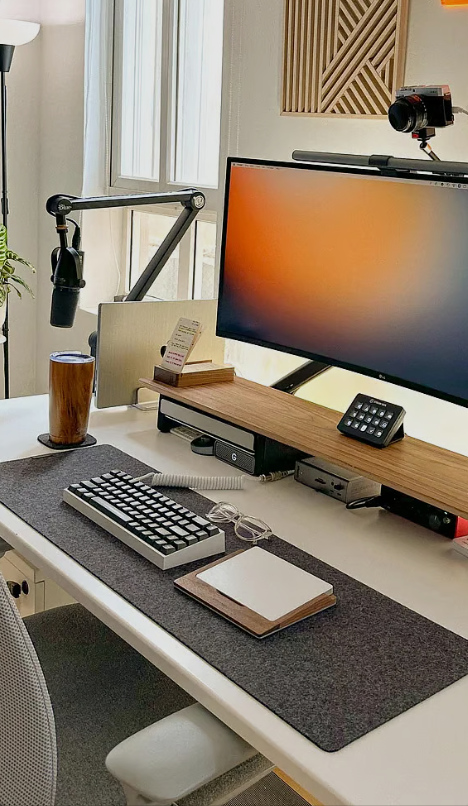
A great router is the foundation, but your complete work-from-home setup requires additional equipment for comfort, productivity, and professionalism. Upgrade your entire home office with these recommendations:
Professional Display for Video Calls
A high-quality monitor dramatically improves both your productivity and your appearance on video calls. The 👉 Dell U2723QE 27 Inch Monitor offers stunning 4K resolution, USB-C connectivity for charging your laptop, and excellent color accuracy for detailed design work.
Ergonomic Input Devices
Wireless peripherals eliminate cable clutter and improve your workspace aesthetic. The 👉 Logitech MX Master 3S Mouse delivers precision and advanced productivity features, while the 👉 Logitech MX Keys S Keyboard provides responsive, quiet typing perfect for open offices and shared spaces.
Ergonomic Seating for Long Work Days
Sitting 8+ hours daily requires proper ergonomic support. The 👉 Herman Miller Aeron Chair is the gold standard for remote workers—adjustable lumbar support, breathable mesh, and durability that lasts decades of daily use.
Universal Connectivity Hub
The 👉 Anker 675 USB-C Docking Station provides universal connectivity—charge your laptop, connect multiple monitors, and access external storage simultaneously from one cable.
Desk Lighting for Video Call Quality
Proper lighting reduces eye strain during long video calls and improves how you appear on camera. The 👉 BenQ ScreenBar Monitor Light mounts on your monitor and eliminates glare while being invisible to your camera during video calls.
Monitor Support and Ergonomics
The 👉 VIVO Dual Monitor Mount elevates monitors to ergonomic height and creates a premium workspace aesthetic that looks professional on video calls.
Premium Alternative Display
For maximum productivity and visual quality, consider the 👉 Samsung ViewFinity S8 for stunning color accuracy and ultra-wide real estate that lets you see more content simultaneously.
Internet Speed: How Much Do You Actually Need?
Understanding bandwidth requirements prevents overpaying for unnecessary speed:
- Video calls (Zoom/Teams): 2.5-4 Mbps required, 5+ Mbps recommended for smooth performance
- Screen sharing: 5-8 Mbps with simultaneous video for comfortable sharing
- File uploads (10 GB): 5+ Mbps upload speed is crucial for timely transfers
- Multiple simultaneous tasks: 20+ Mbps for comfort and buffer during peak usage
- 4K video streaming: 25+ Mbps for smooth playback without buffering
Most remote workers are comfortable with 25-50 Mbps. Gigabit (1000 Mbps) is overkill unless you’re constantly streaming or managing large video files. Focus on consistent, reliable speed rather than peak speed numbers.

FAQ: Best Wi-Fi Router for Work From Home
Ethernet is always superior for critical work—no interference, consistent latency, maximum bandwidth. If your home office is far from your modem, use Ethernet if possible. If not, a good Wi-Fi router in a nearby location is acceptable. Never rely on Wi-Fi for important meetings if Ethernet is available.
Monthly restarts are good practice for long-term stability. Modern routers are designed to run continuously, but occasional restarts clear memory and reset connections. Some people restart weekly as preventative maintenance. You should immediately restart if you experience connection issues.
Not significantly for basic work-from-home. Video calls work fine on Wi-Fi 6. Wi-Fi 6E benefits you if you live in a dense urban area with lots of wireless congestion, or if you have many devices competing for bandwidth. For suburban/rural WFH, standard Wi-Fi 6 is sufficient.
Single powerful router if your office is within 30 feet. Mesh systems if you need coverage across multiple rooms or floors. Mesh is easier to expand later, while single routers offer better peak performance. Test your current router signal strength first—you might not need an upgrade.
Test your connection speed at speedtest.net from your work location. If you’re getting less than 50% of your plan’s speed, your router might be the bottleneck. Also check your router’s distance from your modem and the number of devices connected. Interference from other routers (in apartments) can also be a factor.
Related Home Office Resources
A great best wifi router working from home is just one piece of your complete setup. Check these related guides:
- Best Home Office Desk 2025 — Find the perfect surface for your productivity
- Home Office Setup Guide 2025 — Complete system design for remote work success
- Best Monitor for Working From Home — Optimize your display setup
- Best USB-C Hub and Docking Station — Simplify connectivity
- Best Noise Cancelling Headphones — Improve audio for calls
Final Thoughts: Invest in Your Connection
Your internet connection is critical infrastructure for your professional success. A reliable best wifi router working from home costs a few hundred dollars but directly impacts your ability to join calls, transfer files, and maintain video quality. It’s not an expense—it’s an investment in your career and reputation.
Choose based on your home size, plan speed, and device density. For most people, a solid mid-range Wi-Fi 6 router handles work perfectly. Pair it with proper placement, a few configuration optimizations, and you’ll have rock-solid connectivity for years of productive remote work.
External Resources
- FCC Broadband Speed Guide — Official guidelines on internet speed requirements
- Wi-Fi Alliance — Official Wi-Fi standards and certification information